Installation & downloads
Four steps to start editing.
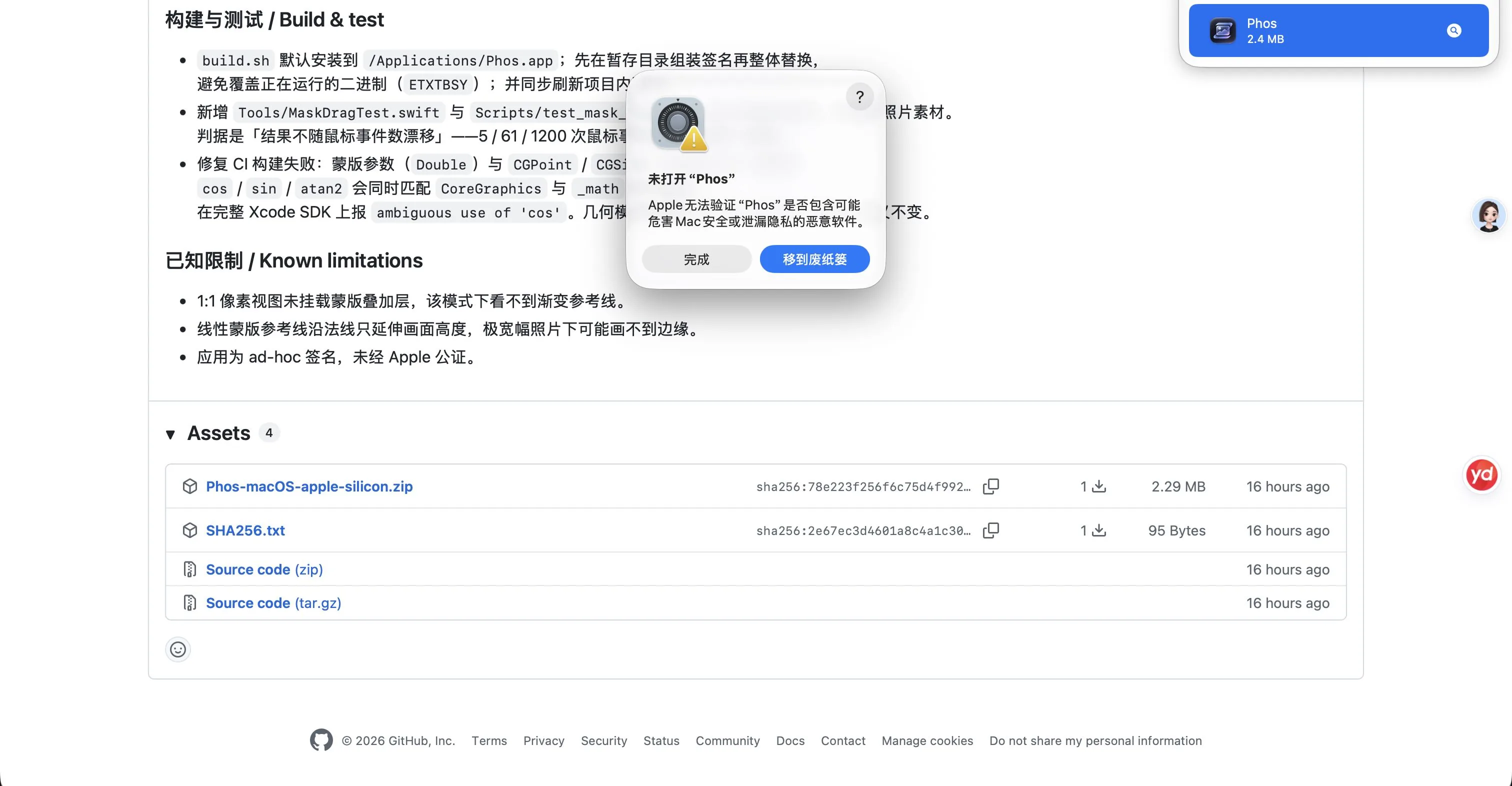
Phos isn’t notarized by Apple yet, so macOS asks for permission once on first launch and never again. This is how macOS treats every non-notarized app — not something unique to Phos.
Download and open the disk image
Click “Download for macOS” on this page, or use this direct link, download Phos-macOS-apple-silicon.dmg, then double-click to open.
Drag it into Applications
In the disk image window, drag Phos into the Applications folder next to it, then eject the image.
Allow it on first launch
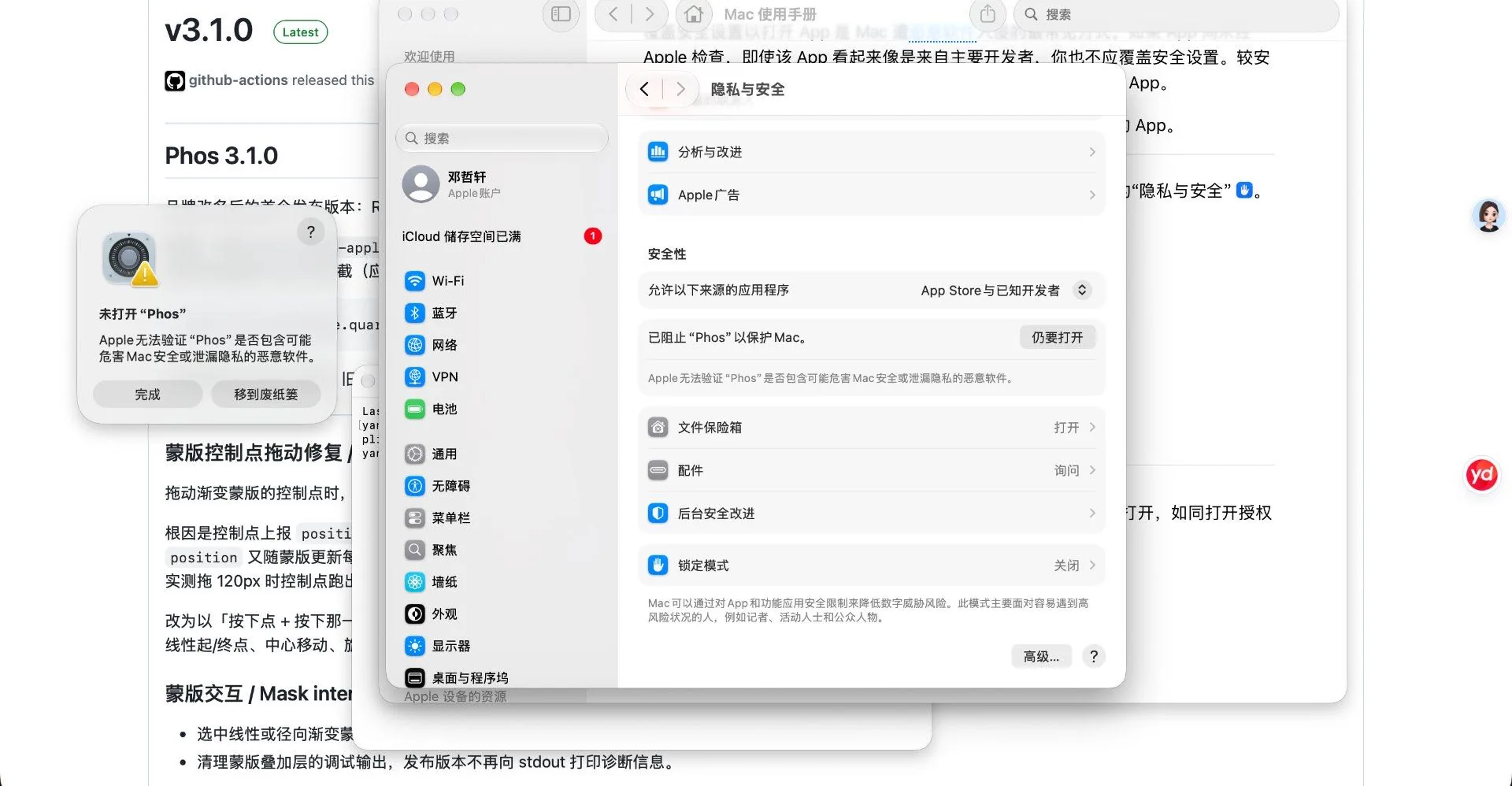
Phos is locally signed but not notarized by Apple, so it is blocked the first time. Double-click Phos, click “Done” to dismiss the dialog, then immediately open System Settings → Privacy & Security, scroll to the bottom, and click “Open Anyway”.
That button disappears about an hour after the dialog appears, so click it right away. After that, double-clicking opens the app normally.
Or skip it with one command
Run this line in Terminal to remove the quarantine flag; after that a double-click opens it:
xattr -dr com.apple.quarantine /Applications/Phos.app
Free, open source, on your Mac.
No account, no subscription, no cloud upload. Your photos stay on your Mac.
Requires macOS 26.0 or later · Apple silicon · MIT license · Version v4.4.0 (7.47 MB)
Download mirrors · switch if one is slow
- Direct linkCloudflare, recommended
- jsDelivr CDNNodes in China
- jsDelivr (backup node)Try another route
- GitHub PagesBackup
- GitHub ReleasesRequires GitHub access
All of the above serve the same file, with an identical SHA256: 76deeca8…c93c (full value in SHA256.txt). After downloading, verify it in Terminal with shasum -a 256 ~/Downloads/Phos-macOS-apple-silicon.dmg.
Prefer a zip? There’s one here too (same contents).
Optional: on-device AI model
- Phos-Optional-Model-Installer.zip6.7 KB · scripts and checksums only
The app already ships with a ~1.3 MB fine-tune adapter, so opening the AI panel requires no extra download; but for the AI to actually produce suggestions you also need a ~3.1 GB base model and an MLX runtime. This 6.7 KB package sets both up — it contains no weights itself and pulls a pinned version from Hugging Face, verifying the SHA256 of every file.
All regular editing works without installing it. AI is experimental; installing it or not doesn’t affect editing itself.
Before you install
· An Apple-silicon (M-series) Mac running macOS 26 or later
· Python 3.11 for arm64 installed (from the python.org downloads page; choose the macOS 64-bit universal2 installer)
· At least 8 GB of free disk space (weights are ~3.1 GB, plus Python and MLX dependencies)
· The first install needs internet access to pypi.org and huggingface.co
· 16 GB of unified memory is the configuration tested here; 8 GB is unverified
Three steps to install
- Install Python 3.11. Download the installer from the link above and double-click to install, then run
python3.11 --versionin Terminal — if it prints a version number, you’re set. - Unzip it and double-click “安装模型.command” (Install Model). If macOS says “cannot verify the developer”, right-click the file → “Open” → “Open” again. A Terminal window opens and installation begins.
If you can’t reach Hugging Face from mainland China, double-click “国内网络安装.command” (China-network install) instead — see the next section. - Let it finish. It installs pinned MLX dependencies, downloads the model from Hugging Face (~3.1 GB, depending on your connection), then verifies each file’s SHA256. When you see “installation and verification complete,” you’re done.
Installing from mainland China
The installer pulls the model from huggingface.co and dependencies from pypi.org by default. Both can be unreachable or very slow on some networks, especially Hugging Face. You can install without a proxy.
The simplest option: unzip and double-click “国内网络安装.command” (China-network install). Bundled since 4.0.1, it swaps the two download sources for hf-mirror and the Tsinghua PyPI mirror; everything else is identical to the normal install, with no terminal needed.
To run it manually or choose other mirrors, open Terminal in the unzipped folder (right-click the folder → Services → New Terminal at Folder) and paste:
HF_ENDPOINT=https://hf-mirror.com \
PIP_INDEX_URL=https://pypi.tuna.tsinghua.edu.cn/simple \
python3.11 install_model.py
Mirrors only change where files come from, not verification: every model file is still checked against the manifest, and a single wrong byte stops the install with an error — no corrupt files get in. To test a mirror first, open the model page on hf-mirror.com.
If the Python installer downloads slowly from python.org, use the Huawei Cloud mirror: mirrors.huaweicloud.com/python, and pick a 3.11.x macOS universal2 installer.
Using it after installation
It installs to ~/Library/Application Support/Phos/MLX by default, and Phos finds it automatically — open any photo and click “AI Edit” at the top of the adjustment panel. No further configuration.
To install elsewhere, run python3.11 install_model.py --environment /absolute/path/Phos-MLX in Terminal; afterwards use “AI Edit → Choose model environment” in the app and select the outer folder that contains both .venv and model.
To check the install, run python3 install_model.py --verify-only. To uninstall, just delete that folder.
FAQ
It says “Please install Apple Silicon Python 3.11”
Either Python isn’t installed, or the Intel build was installed. Download the universal2 installer from python.org again; after installing, run python3.11 --version in Terminal to confirm, then double-click “安装模型.command” again.
What if the download fails halfway?
The script won’t overwrite an existing environment, and partial progress is kept. Switch to a network that can reliably reach Hugging Face and double-click “安装模型.command” again; alternatively, use --environment to install into a brand-new empty directory. The script never switches to an unvetted mirror on its own.
I downloaded the model files — why doesn’t it work?
Weights and runtime are two different things. Putting only the .safetensors files in a folder doesn’t provide the MLX dependencies; the installer must set up the .venv. Phos needs both before it can start the local inference server.
Can I move or copy that folder after installing?
Moving it isn’t recommended. The .venv records absolute interpreter paths and breaks if moved. To relocate, reinstall with --environment.
Does AI upload my photos anywhere?
No. Inference runs locally at 127.0.0.1 and photos never leave this Mac. Network access is needed only during installation, to download the model and dependencies.
The base model is mlx-community/Qwen3-VL-4B-Instruct-4bit (pinned version 2fd8dacb…; China mirror: hf-mirror), licensed under Apache-2.0. Attribution and the full license text ship inside the app’s PhotoAIAdapter directory. Phos’s academic-use notice does not change the licensing terms of third-party models.
Windows build · Experimental port
- Phos-4.0.1-Windows-x64.zip323 MB · Windows 11 x64
Ported from the macOS 4.0.1 source, maintained separately from the macOS build, with its own version numbering. Unzip it and double-click Phos.exe in the root folder; it must stay in the same directory as the app\ folder.
It isn’t exactly the same as the macOS build. Apple’s Vision and Core Image are replaced with local implementations (MODNet / BiRefNet / OpenCV / D3D11), so subject segmentation, edges, and color can differ; it does not include on-device AI editing; it also lacks the macOS 4.1 interface update (advanced editing, unified glass, crop hot zones, auto-level).
It isn’t code-signed, so the first launch is blocked by Windows SmartScreen — click “More info → Run anyway”. Full differences and known limitations are in the release notes.