Explore Phos

From first light
to final export.

Every capability, in the context of a real photography workflow.

Try editing

Light & white balance

Shape the image one adjustment at a time.

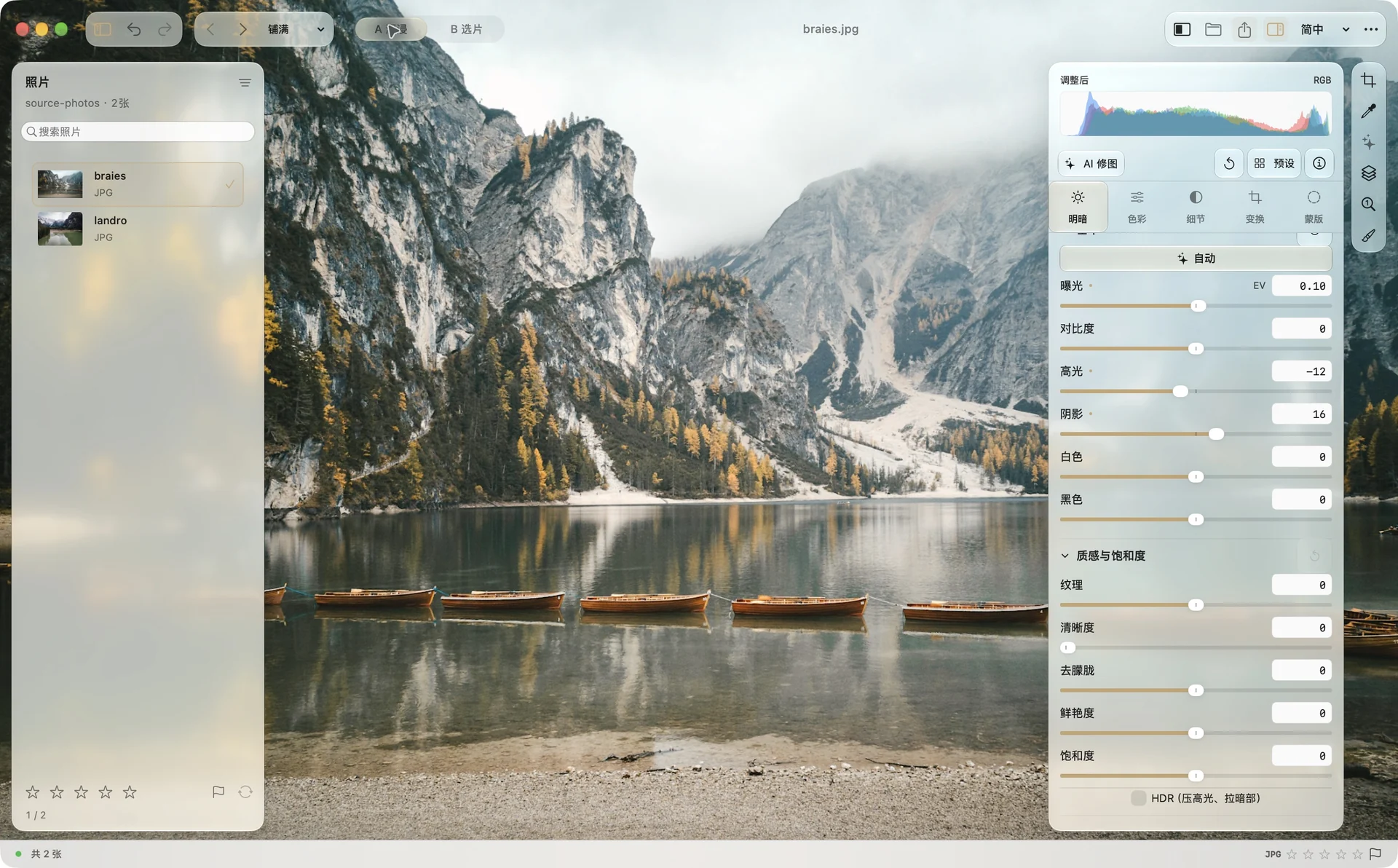
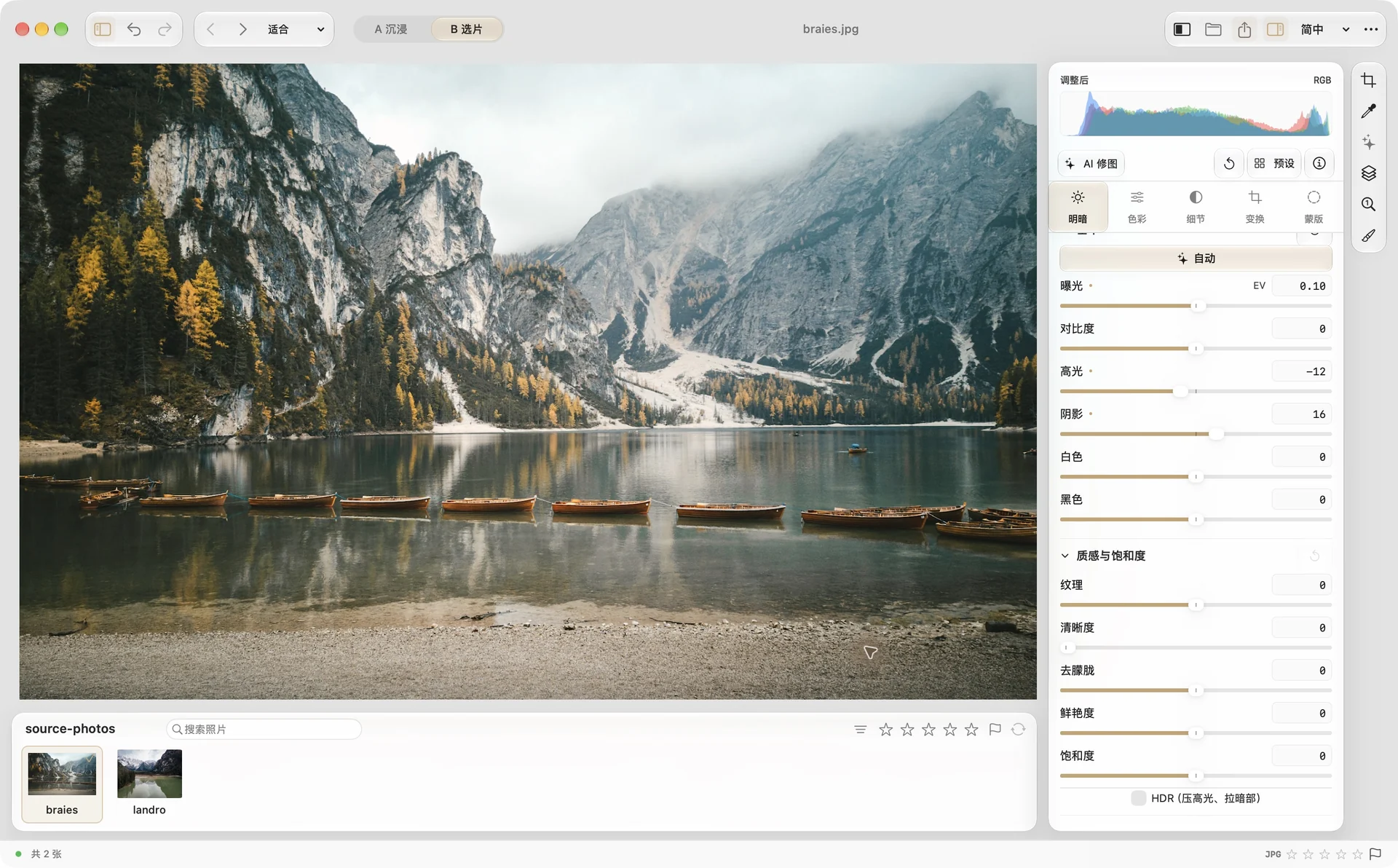
  • Temperature, tint and gray-point sampling; exposure, contrast, highlights, shadows, whites and blacks.
  • Texture, clarity, dehaze, vibrance, saturation and HDR highlight/shadow compression.
  • Auto tone gives you an editable starting point. Original comparison and undo remain available.
Light adjustment workspace
Specifications and details

Exposure, contrast, highlights, shadows, whites and blacks, texture / clarity / dehaze, white-balance gray-point eyedropper, HDR; five-channel tone curve, HSL mixer, color grading, black & white, and calibration.

Curves & color

Build a look or refine one subtle color.

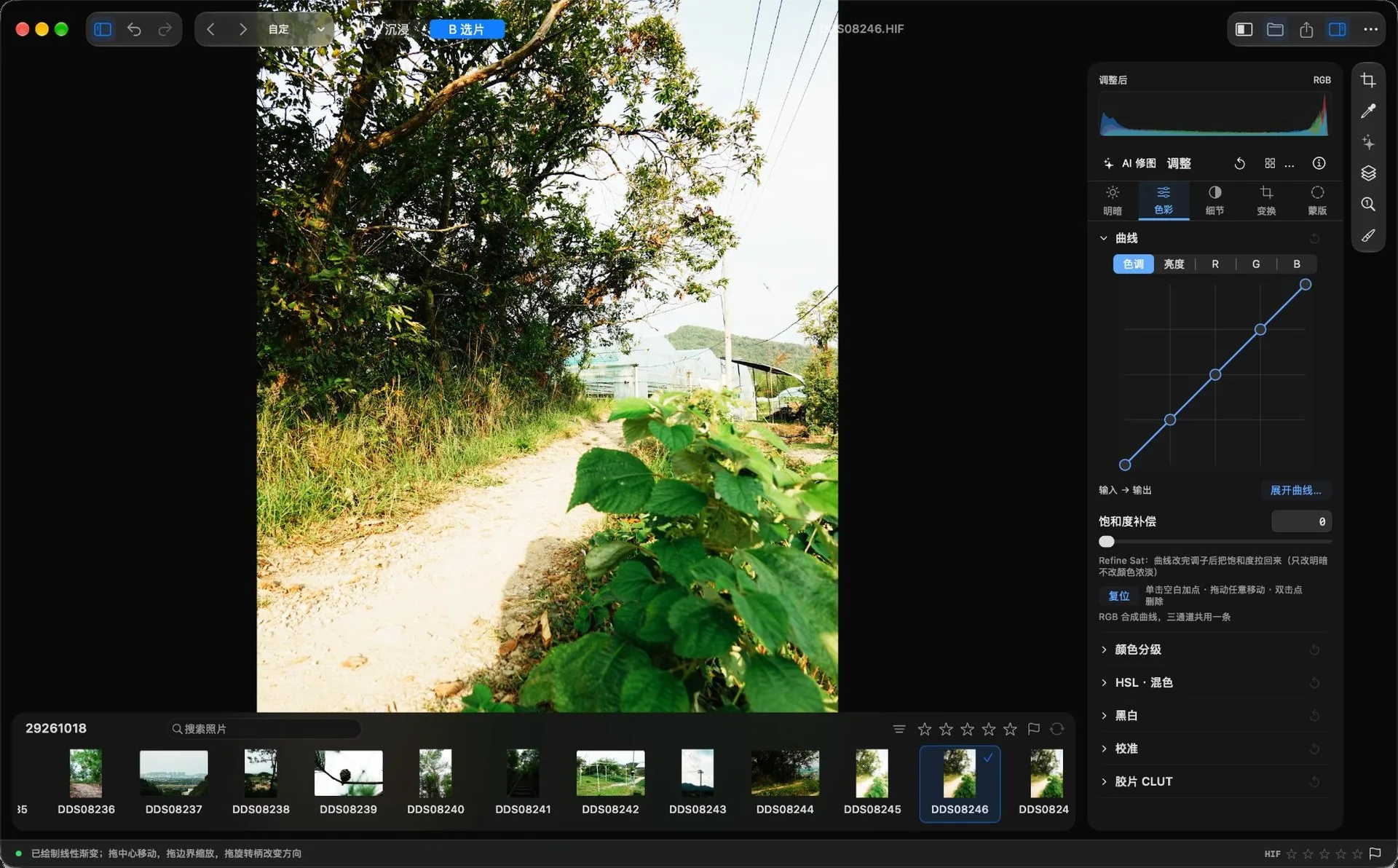
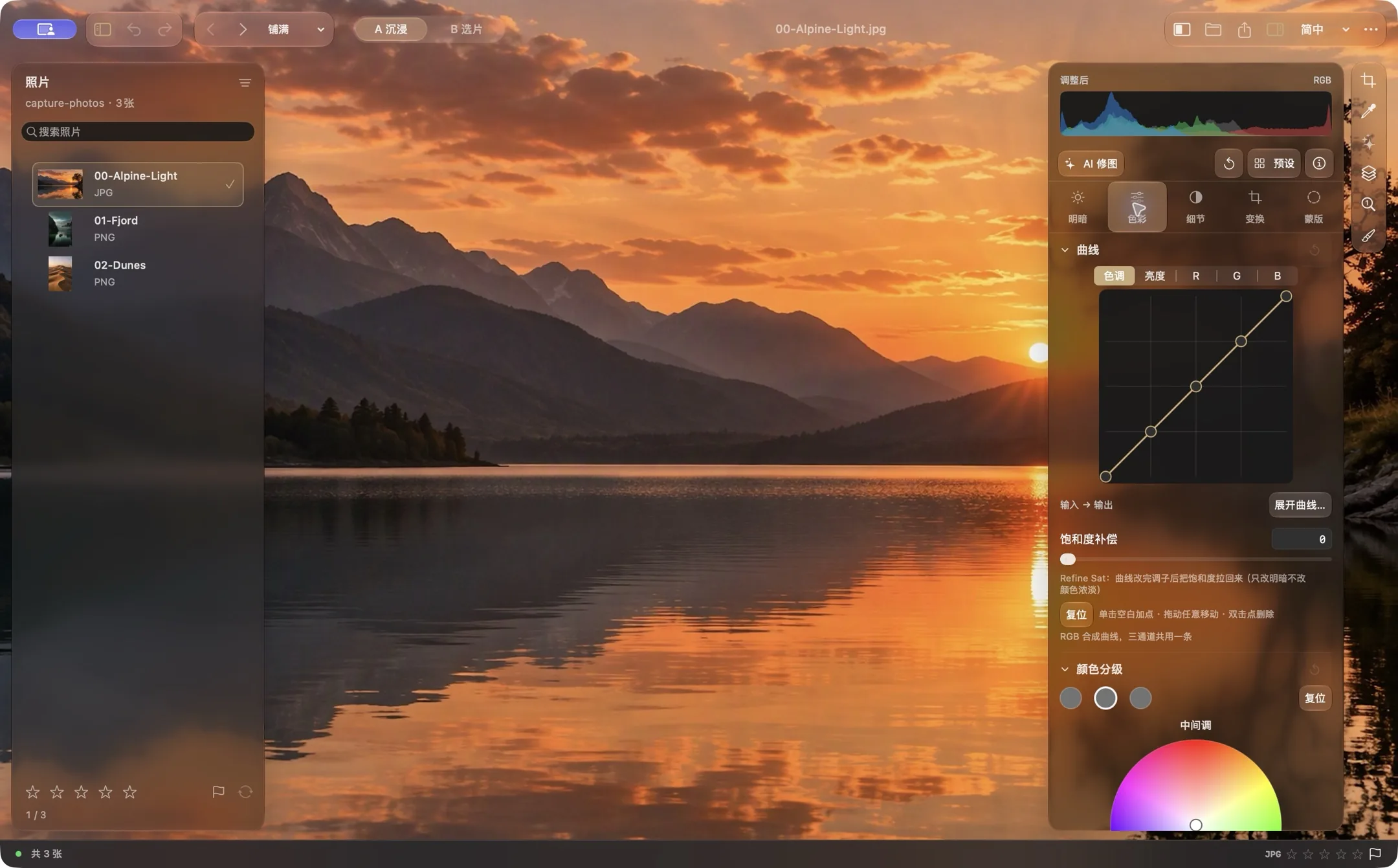
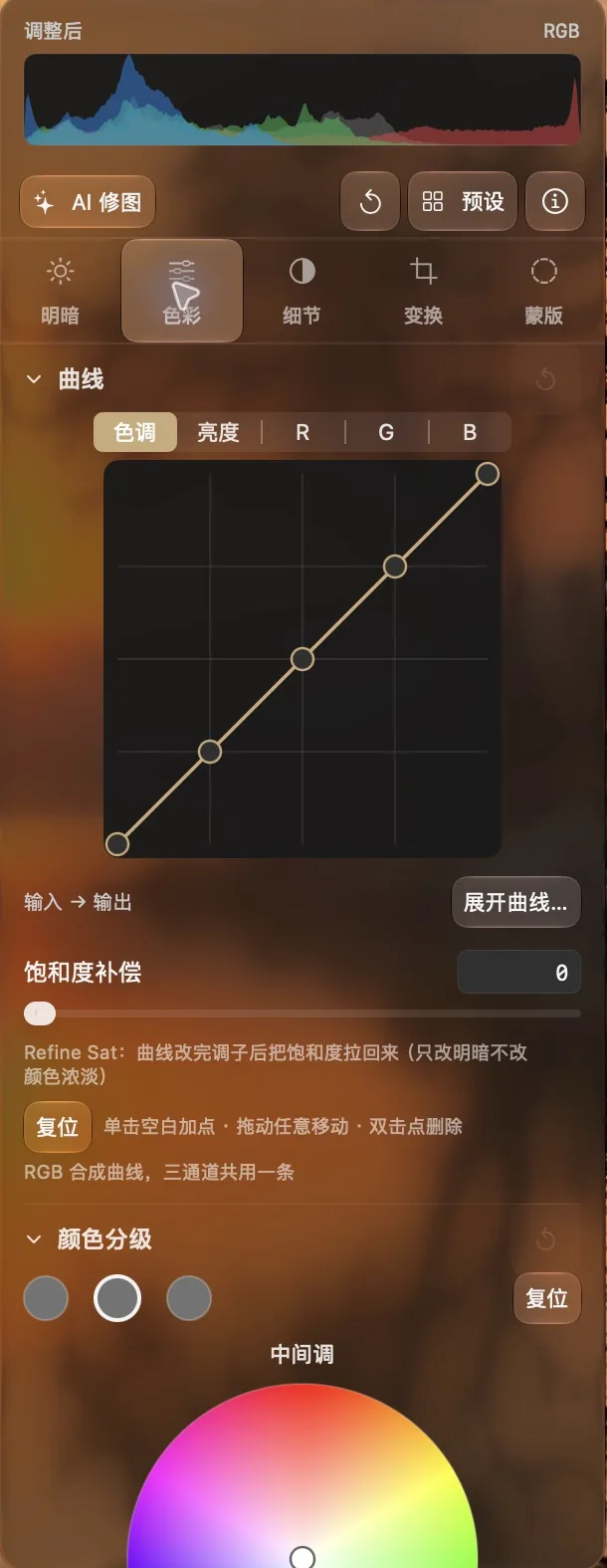
  • Five curve channels: composite, luminance, R, G and B, with freely editable points.
  • Separate shadow, midtone and highlight grading, with blend and balance.
  • Eight-band HSL, black-and-white channel mixing and RGB primary calibration.
Curves and color grading
Specifications and details
Current Phos color inspector with curves, color grading and HSL controls
Colour inspector detail

Film & texture

Keep the look you want to return to.

  • HALD film LUTs, including Kodak 2383 / 2393 print looks, with continuous strength control.
  • Import .cube LUTs or scan your own HaldCLUT directory.
  • Grain, grain size, vignette, halation, sharpening and luminance/color noise reduction.
Specifications and details

HALD CLUT loading, including Kodak 2383 / 2393 print emulations, 64³ cube resampling, adjustable strength.

Nine local masks

Give each area its own adjustments.

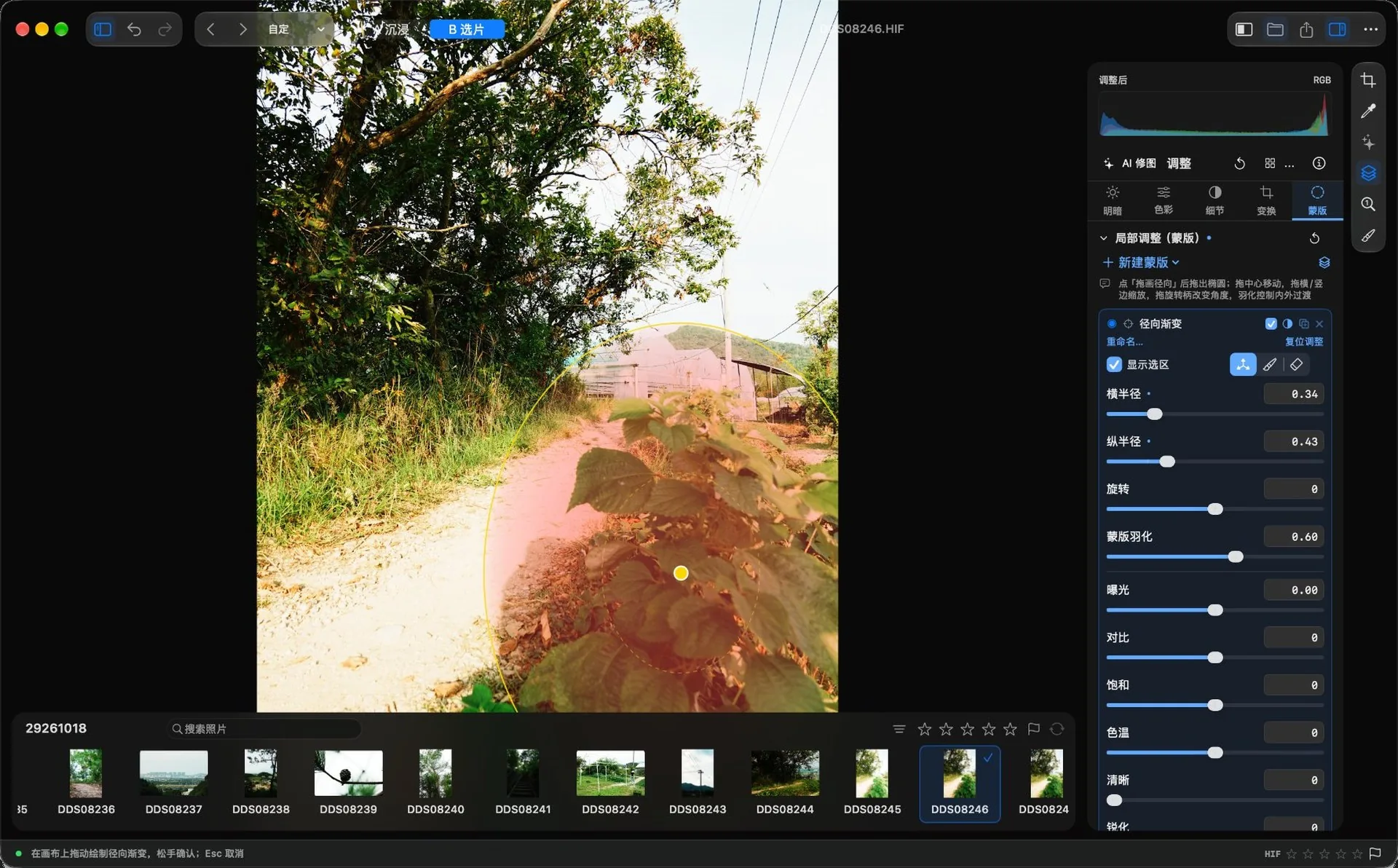
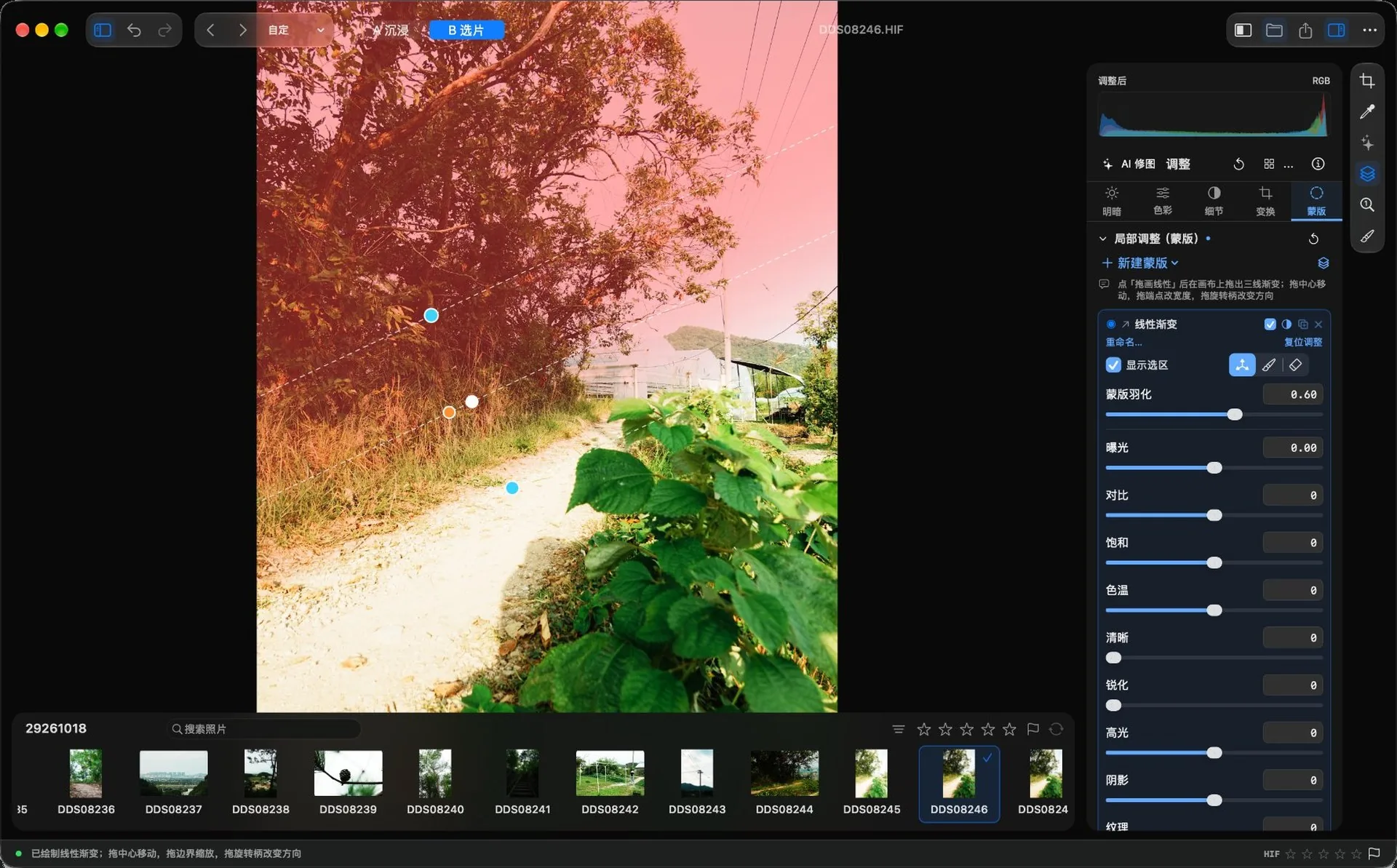
  • Linear and radial gradients, brush, color range and luminance range.
  • Subject, person, foreground cutout and depth painting, using on-device vision where applicable.
  • Independent adjustment stacks; invert, duplicate or delete, with directly draggable canvas controls.
Linear gradient mask example
Specifications and details

Linear and radial gradients, brush, color range, luminance range, Select Subject, Select Person, subject cutout, and depth paint — nine in all. Each mask has its own adjustment stack and can be inverted, duplicated, or deleted.

Crop, geometry & lenses

Look after the composition and the edges.

  • Eight crop handles, aspect ratios, 90-degree rotation, horizontal flip and manual straightening.
  • Auto level and automatic/manual perspective correction, with undoable crop sessions.
  • Lateral chromatic aberration and purple-fringe suppression; portrait depth or painted depth for bokeh.

Selection & batch editing

Carry one good edit across a series.

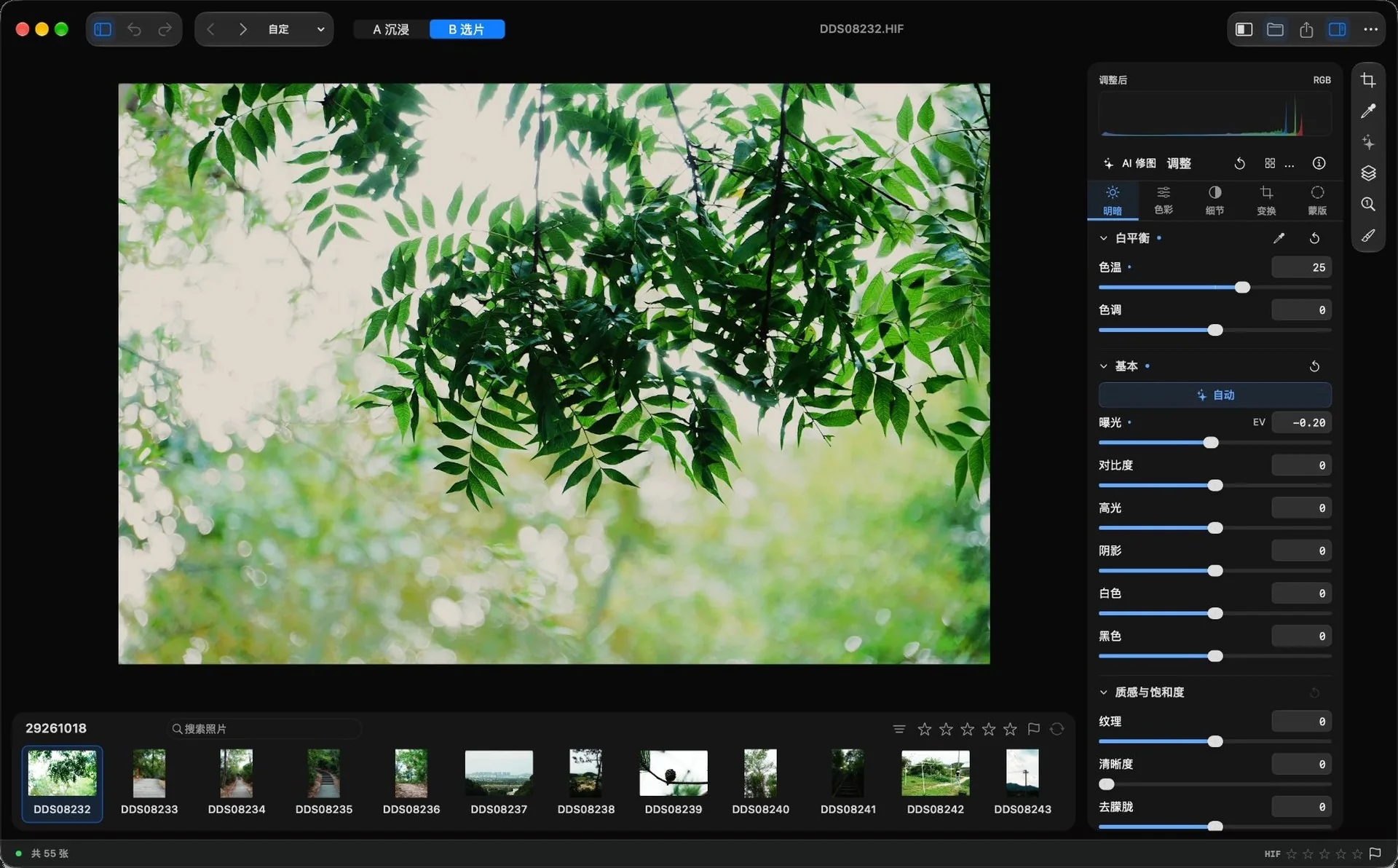
  • A Immersive and B Filmstrip share edit state, with search, ratings and picks.
  • Named presets and snapshots, snapshot recovery, selection sync and batch export.
  • Multiple-exposure averaging, exposure fusion and handheld denoise workflows.
Filmstrip selection workflow
Specifications and details

Multi-select and sync adjustments, restore snapshots, named presets, named snapshots, and multi-exposure compositing.

The main window rebuilt in 4.0: A List for one-at-a-time editing, B Filmstrip for continuous culling. The toolbar shares a centerline with the system traffic lights, the list and inspector widths are draggable, and switching layouts doesn’t interrupt editing.

Export & watermarks

Choose how the photograph leaves the editor.

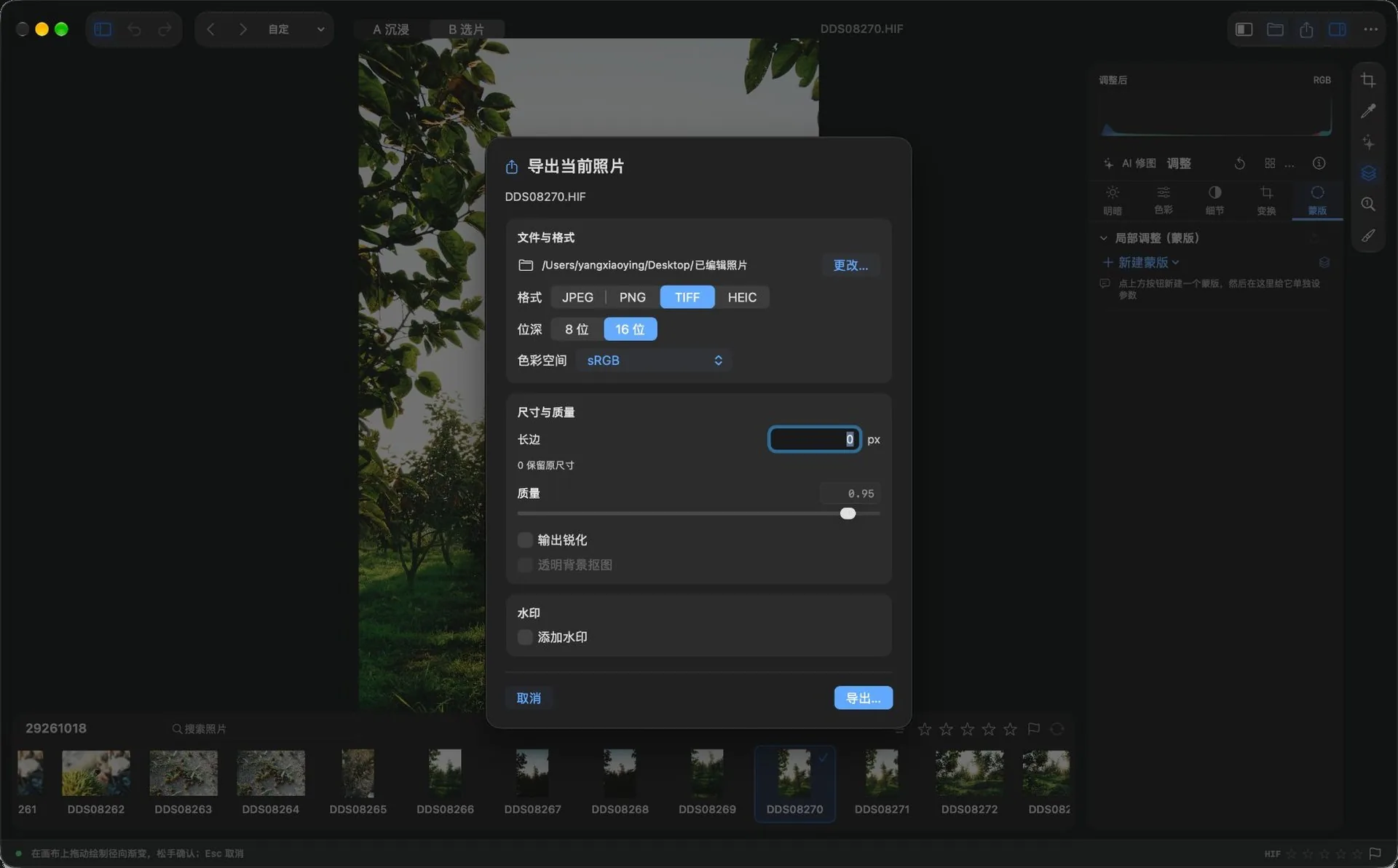
  • JPEG, PNG, TIFF and HEIC output; 8/16-bit TIFF and multiple color spaces.
  • Long-edge resize, output quality, output sharpening and text/image watermarks.
  • Nine-position watermark placement, opacity and rotation, with a fixed output directory option.
Export and watermark settings
Specifications and details

8-bit and 16-bit TIFF in multiple color spaces, long-edge resizing, text and image watermarks with nine-point placement, pinned export folder.

Local AI editing

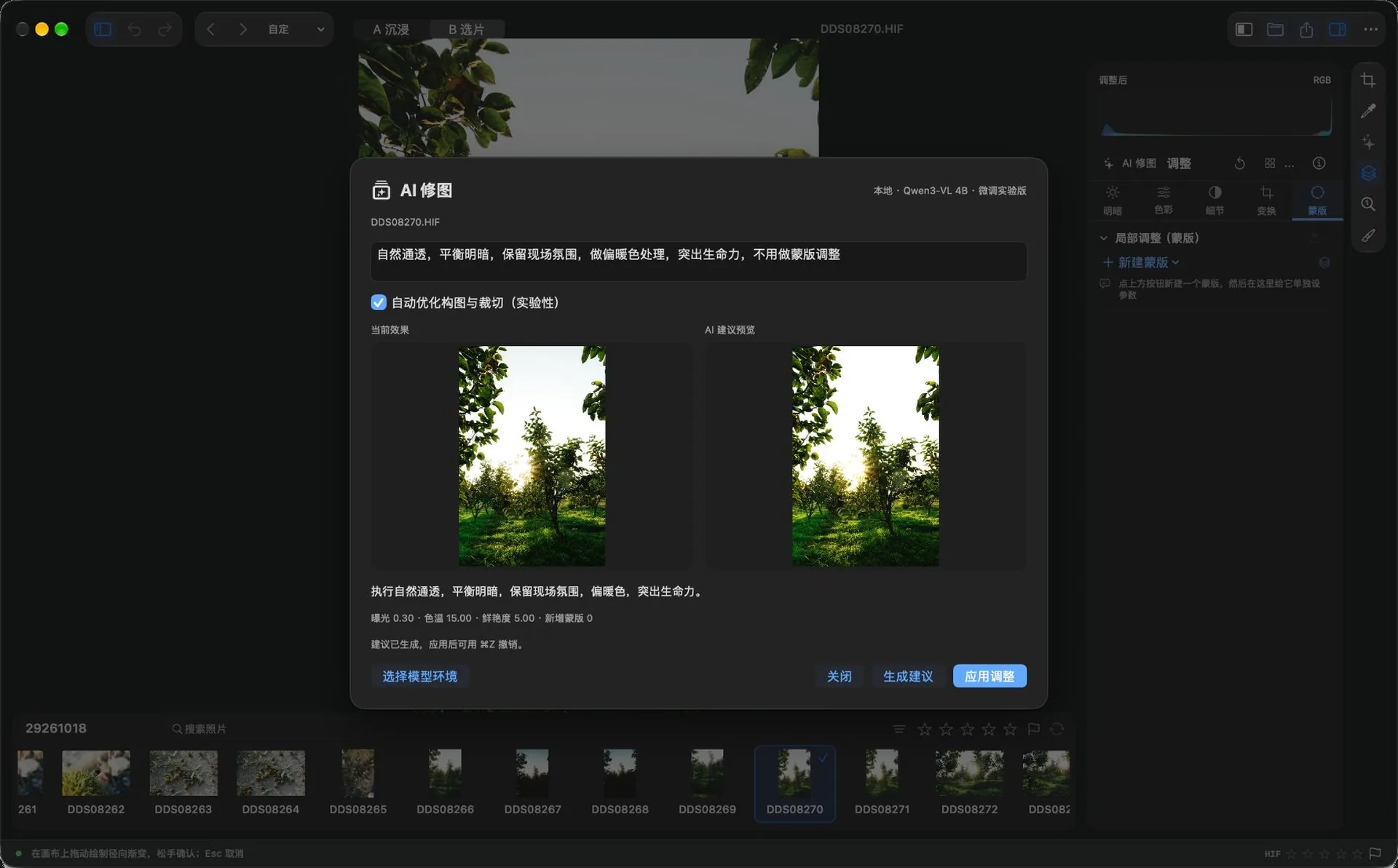
Describe your change. Keep control of the parameters.

  • Global and local-mask suggestions, with side-by-side previews before applying.
  • Explicitly preserved controls are protected; stale suggestions do not overwrite changed photos or parameters.
  • A separately installed 3.1 GB base model and bundled 1.3 MB adapter. Experimental; judge the preview.
Local AI suggestion preview
Specifications and details

Describe the change in Chinese; the model suggests global slider values and local masks, with a preview before anything is applied. Inference runs on-device — photos are never uploaded. Experimental; the model must be installed separately.

Development validation and constraints (not an independent test)

4.1 ships new fine-tuned weights: on the same 301 controlled validation prompts, first-pass strict completion rose from 51.8% to 94.0%. Only the 1.3 MB adapter bundled with the app changed — the base model does not need to be downloaded again. These numbers come from a development validation set, not an independent test, and say nothing about aesthetics.

Say it precisely, it obeys

Requests like “crop 5% off each side, keep the full height” are computed by code, not estimated by the model. Auto-crop first validates dimensions and retained area; an invalid plan is sent back for one retry, and after two failures nothing is applied.

Keep means keep

When you explicitly ask to “leave exposure alone” or “keep white balance unchanged,” those sliders are removed from the model’s writable fields and checked again after decoding. Mixed global and local requests are supported just the same.

Preview first, then decide

Generated plans show a preview and are only written after you confirm; each apply is one undo. Local effects are checked against the direction of real rendered pixels and retried or blocked when they don’t match.

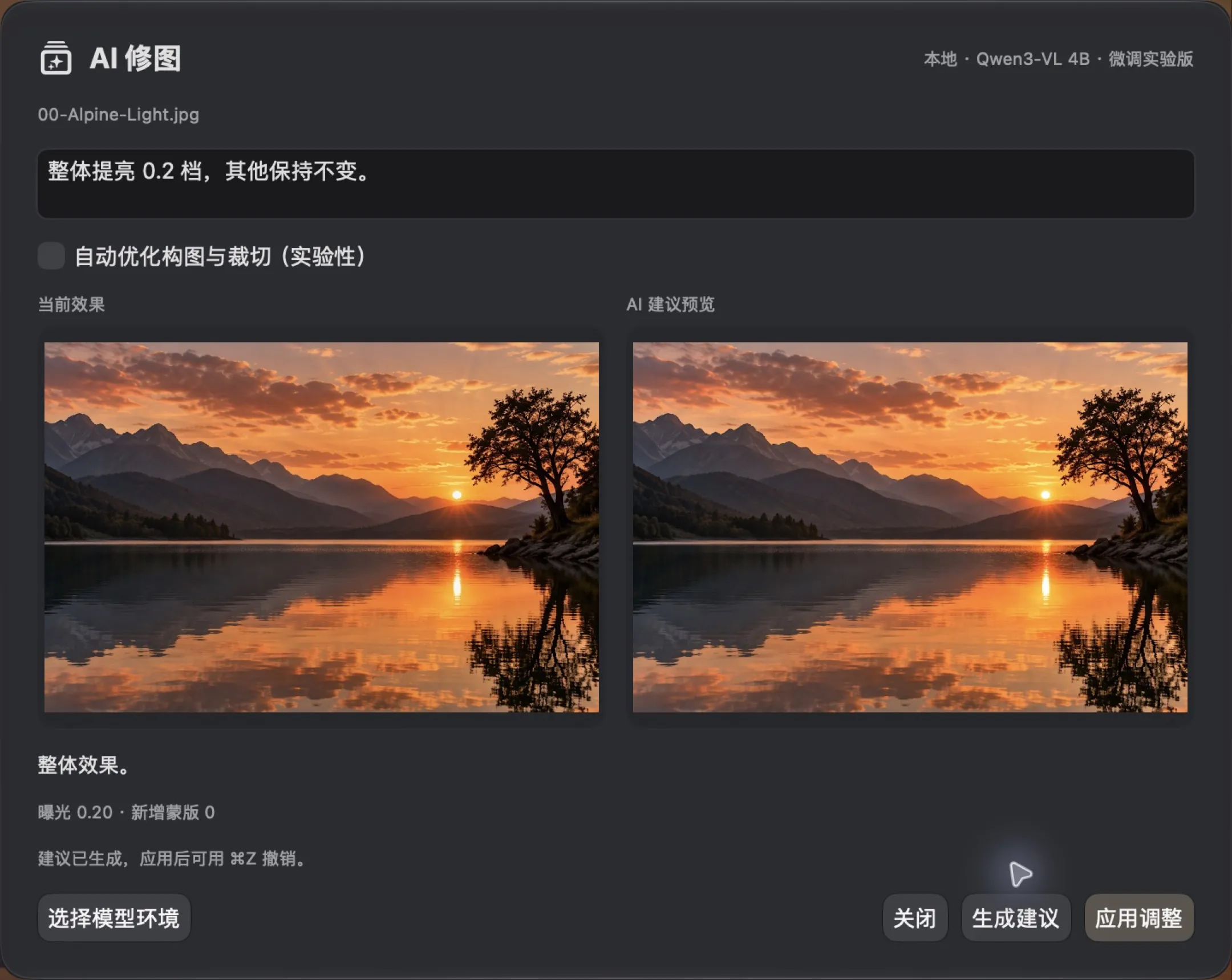
View the original AI workflow example
Phos AI editing panel: after a Chinese prompt, it suggests exposure, temperature, vibrance, and other parameters, with current and suggested results side by side; the top right is labeled “fine-tune experimental”
AI Edit · Fine-tune experimental
Write a request and the model proposes exposure, temperature, vibrance, and local mask suggestions. The current result is on the left, the suggestion on the right; nothing is written until you confirm, and closing it leaves the original untouched — not a single byte.

Native, bilingual & compatible

Work the way your Mac does.

  • Swift, Core Image, Vision and AppKit, with system-following light and dark appearances.
  • System language, Simplified Chinese and English, switching menus and controls immediately.
  • Edits live in sidecars; legacy RawForge sidecars and existing presets stay readable.
Specifications and details

Mainstream RAW formats such as ARW / CR3 / NEF, plus HEIF / HEIC / HIF, JPEG, PNG, TIFF, and AVIF.

Choose Follow System, 简体中文, or English — it switches instantly, no restart. 668 strings cover menus, parameters, forms and messages; tooltips and accessibility labels follow the language too.

A non-destructive RAW photo editor built for macOS. Every pixel is processed on your Mac; edits are written to a sidecar file next to the original, and not a single byte of the original is changed. Version 4.0 rebuilt the entire workspace and added optional on-device AI editing.

Graphite and champagne

The interface is built on neutral graphite panels; champagne gold marks only selection and editing states, while everything else stays restrained. The order comes from a strict grid: a fixed line-height rhythm, tabular figures, and hairline dividers.

Restrained gold

Gold doesn’t decorate — it reports state: selection rings, slider fills, film cards, the primary export button. If it’s gold, you’re editing.

Strict grid

A fixed 26 / 27 / 34 px line-height rhythm, 16 px padding throughout, right-aligned tabular figures. Dense, never messy.

Masks you can read

Guides are 1 px white dashed lines, and handle colors encode their job: linear gradient endpoints are cyan, the center is white, the rotation handle is amber; radial gradients are yellow. The color tells you what you can drag.

Drag endpointrange Drag endpointrange Drag center to move Rotation handle · direction
Endpoint: sets the gradient width
Center: moves the whole gradient
Rotation handle: changes direction
Radial: ellipse and feather boundary

Control diagram, not an application screenshot. Scroll horizontally on a narrow screen to inspect the handles.